
Open Anyway
Allows macOS to open this copy of LocalKeyRemapper after you explicitly approve it.
DMG installation guide
Start with the DMG you already downloaded, move the app into Applications, approve its first launch and grant the Accessibility permission required for keyboard remapping.
Before you begin
If you do not have the DMG yet, use the Download page first. Only obtain LocalKeyRemapper from the official project distribution.
Part 1 · Install the app
These first steps are straightforward, so they stay text-only. The visual guide begins when macOS starts asking for security permissions.
Open the disk image
Double-click the .dmg file in Downloads.
macOS will mount it and open the LocalKeyRemapper installation window.
Install
In the DMG window, drag LocalKeyRemapper.app onto the Applications folder and wait for the copy to finish.
Finish with the DMG
After the copy has completed, eject the mounted disk image. The app remains installed in your Applications folder.
First launch
Open Finder → Applications, then double-click LocalKeyRemapper.app.
Part 2 · Allow the first launch
Security warning
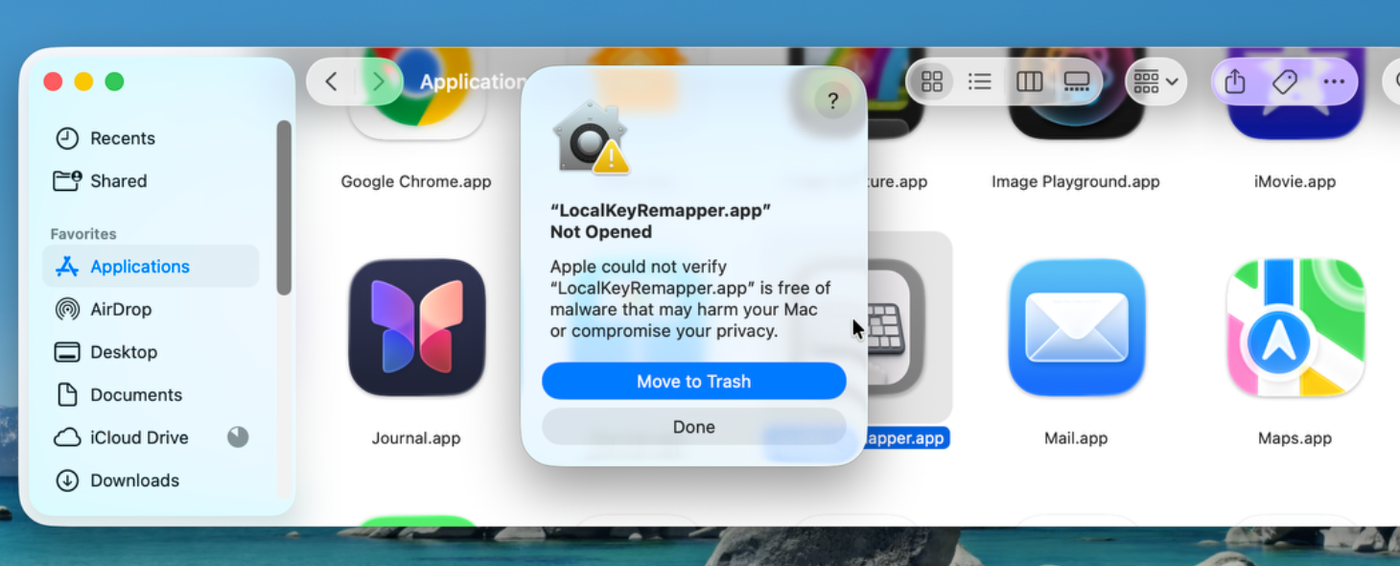
The first warning says Apple could not verify the app. Do not choose Move to Trash. Click Done to close the warning.
Privacy & Security
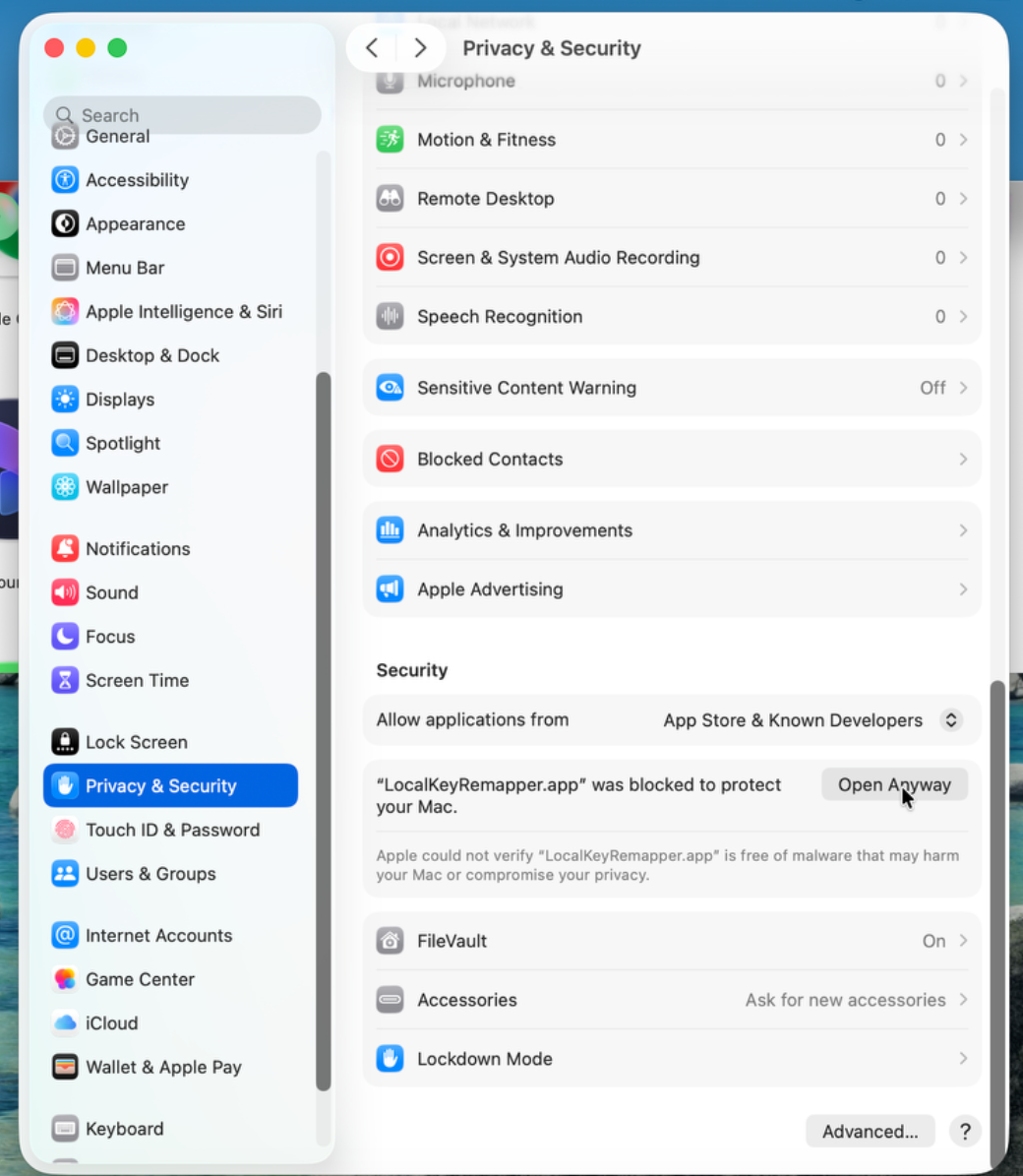
Go to System Settings → Privacy & Security, scroll down to the Security section and find the LocalKeyRemapper message. Click Open Anyway.
Confirm opening
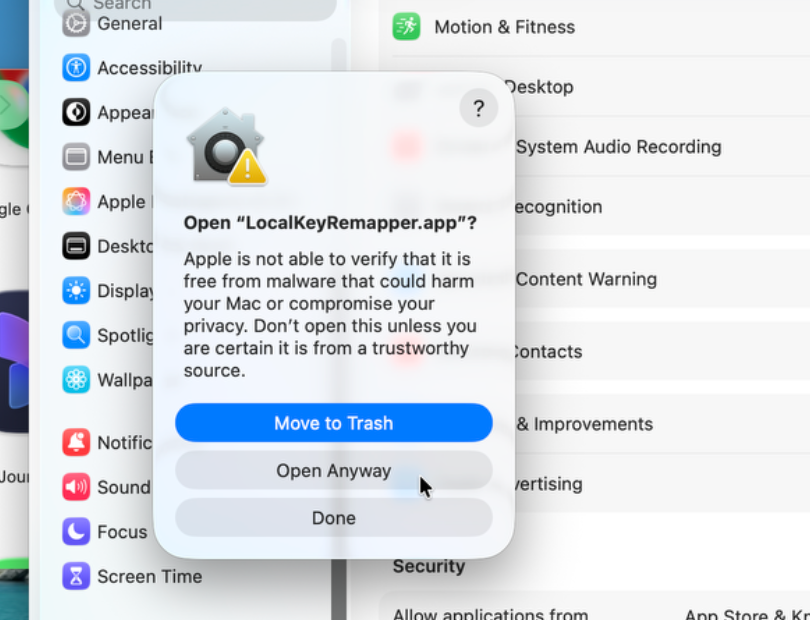
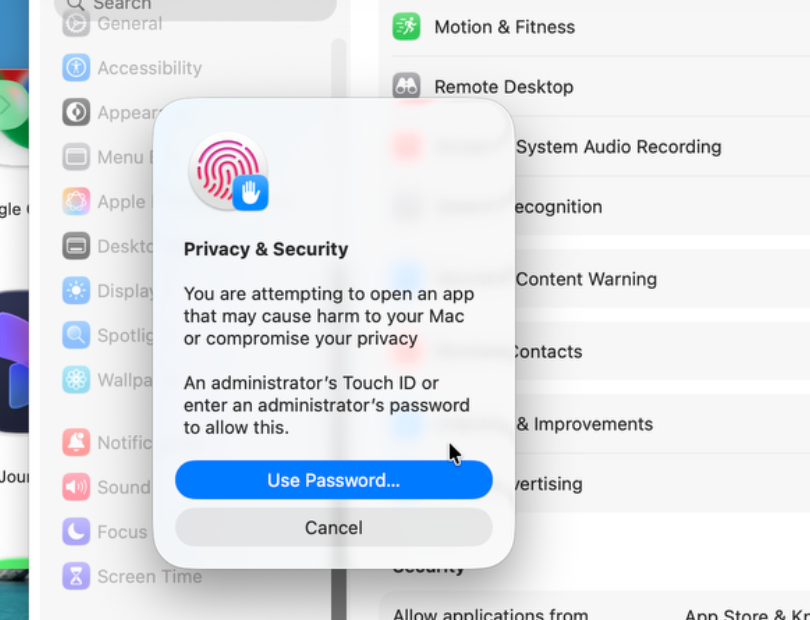
macOS asks once more whether you want to open LocalKeyRemapper. Click Open Anyway. Then approve the action with Touch ID or enter an administrator password if requested.
Part 3 · Grant Accessibility permission
Opening the app and granting Accessibility access are separate macOS protections. The app can open before it has permission to remap keys.
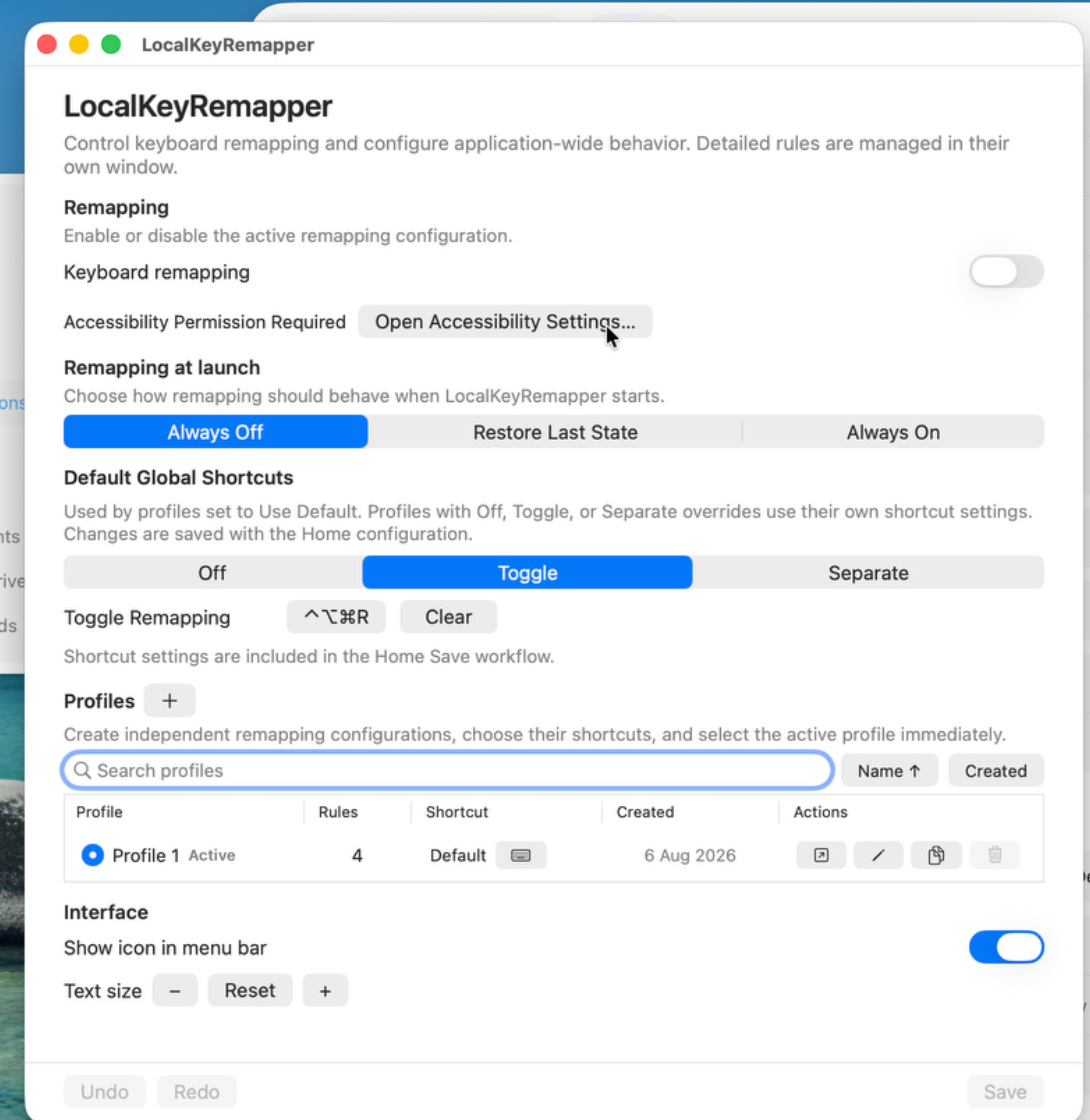
Open Accessibility
After the app opens, LocalKeyRemapper shows Accessibility Permission Required. Click Open Accessibility Settings….
If you do not see the button, you can open the same page manually: System Settings → Privacy & Security → Accessibility.
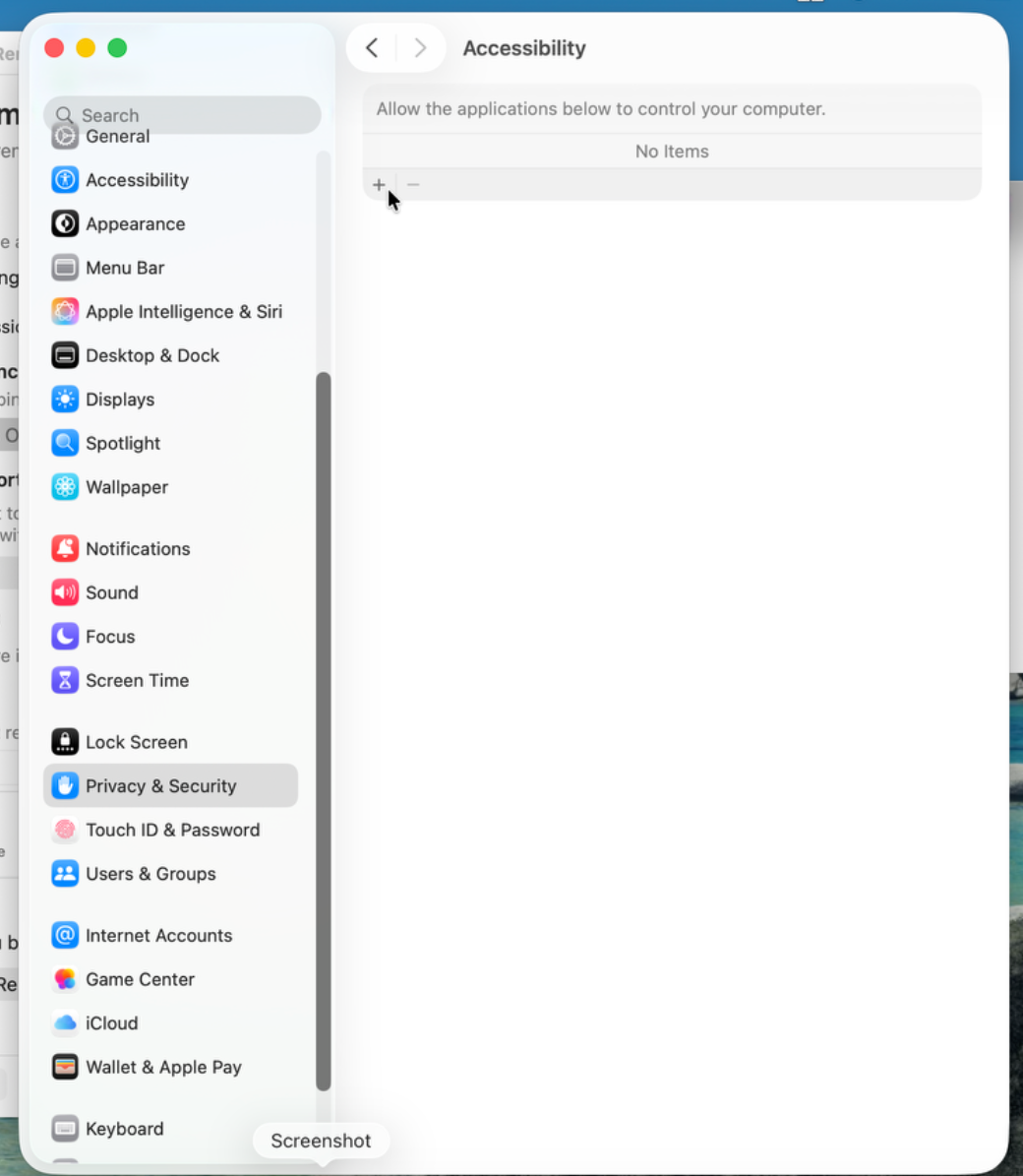
Add LocalKeyRemapper
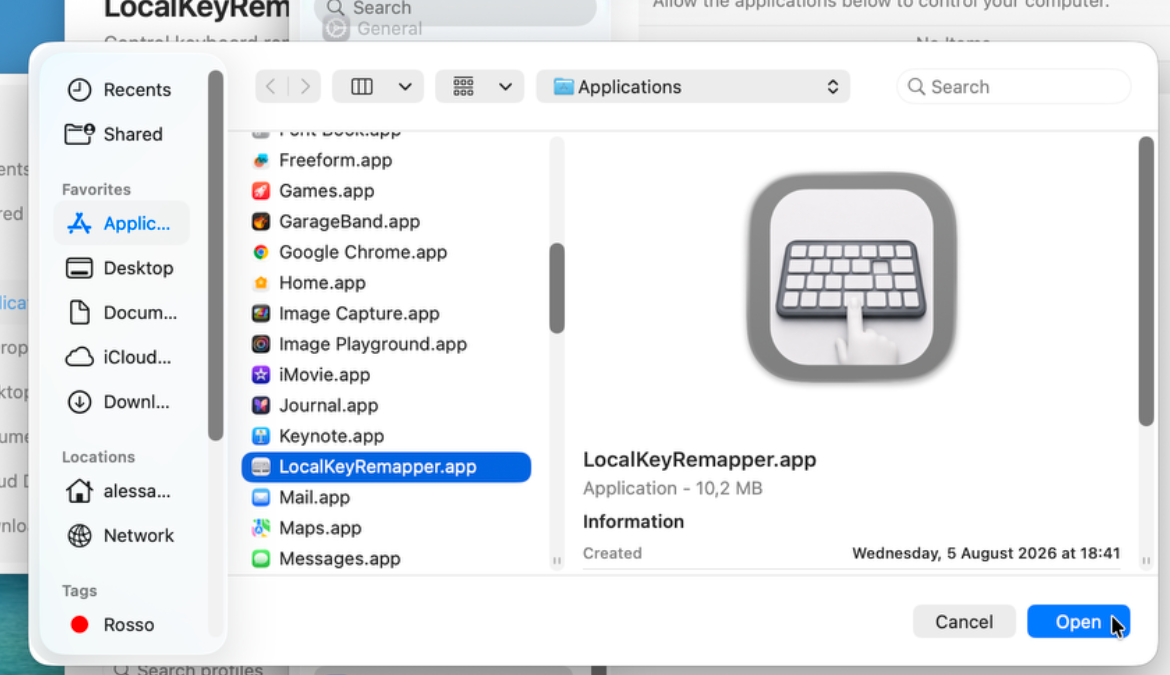
In Accessibility settings, click the + button. Select LocalKeyRemapper.app from Applications and click Open.
If LocalKeyRemapper is already listed, you can skip the + step and continue directly to the next step.
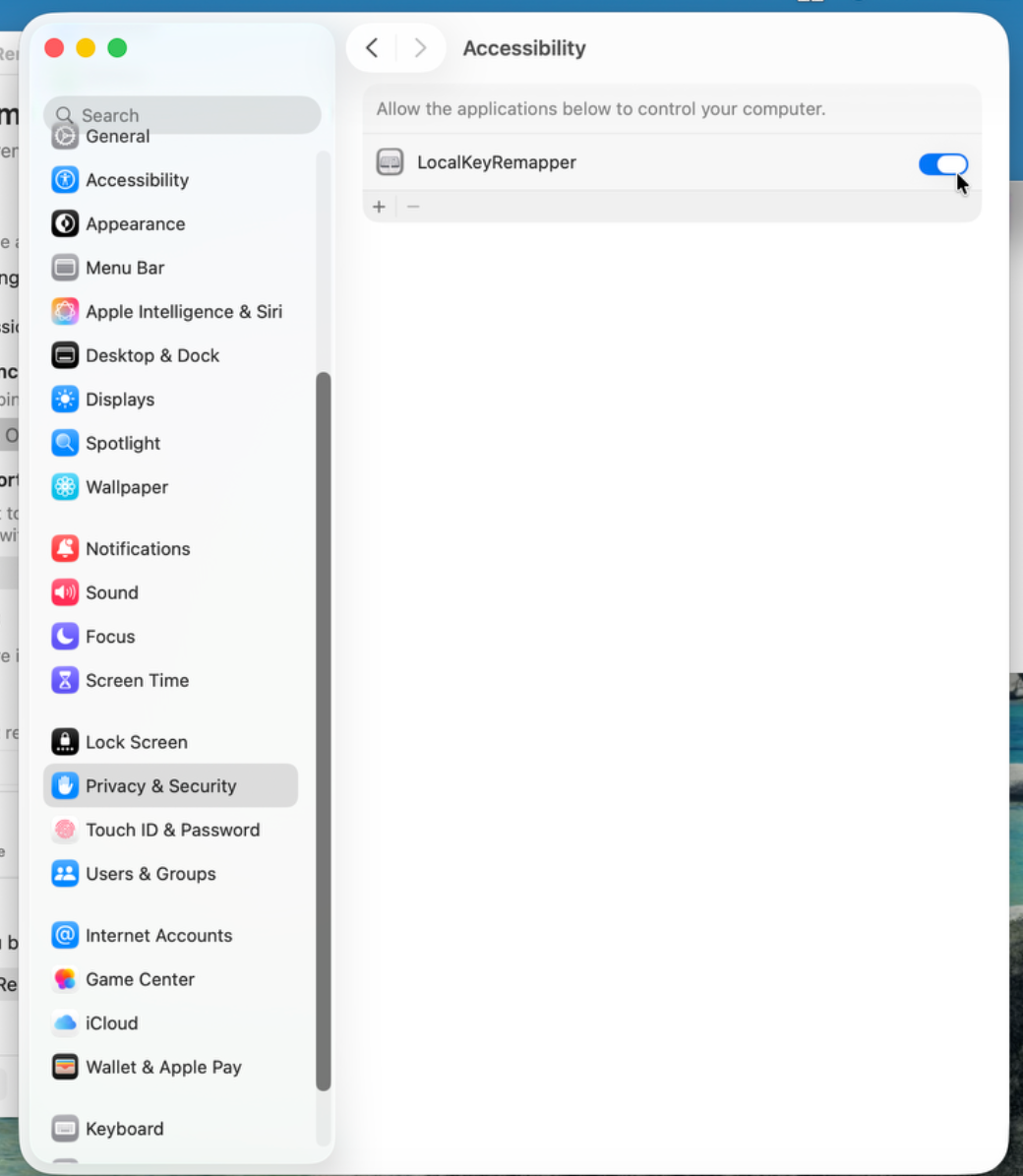
Enable permission
LocalKeyRemapper now appears in the Accessibility list. Enable the switch next to it. Authenticate again if macOS asks.
Part 4 · Finish
Ready
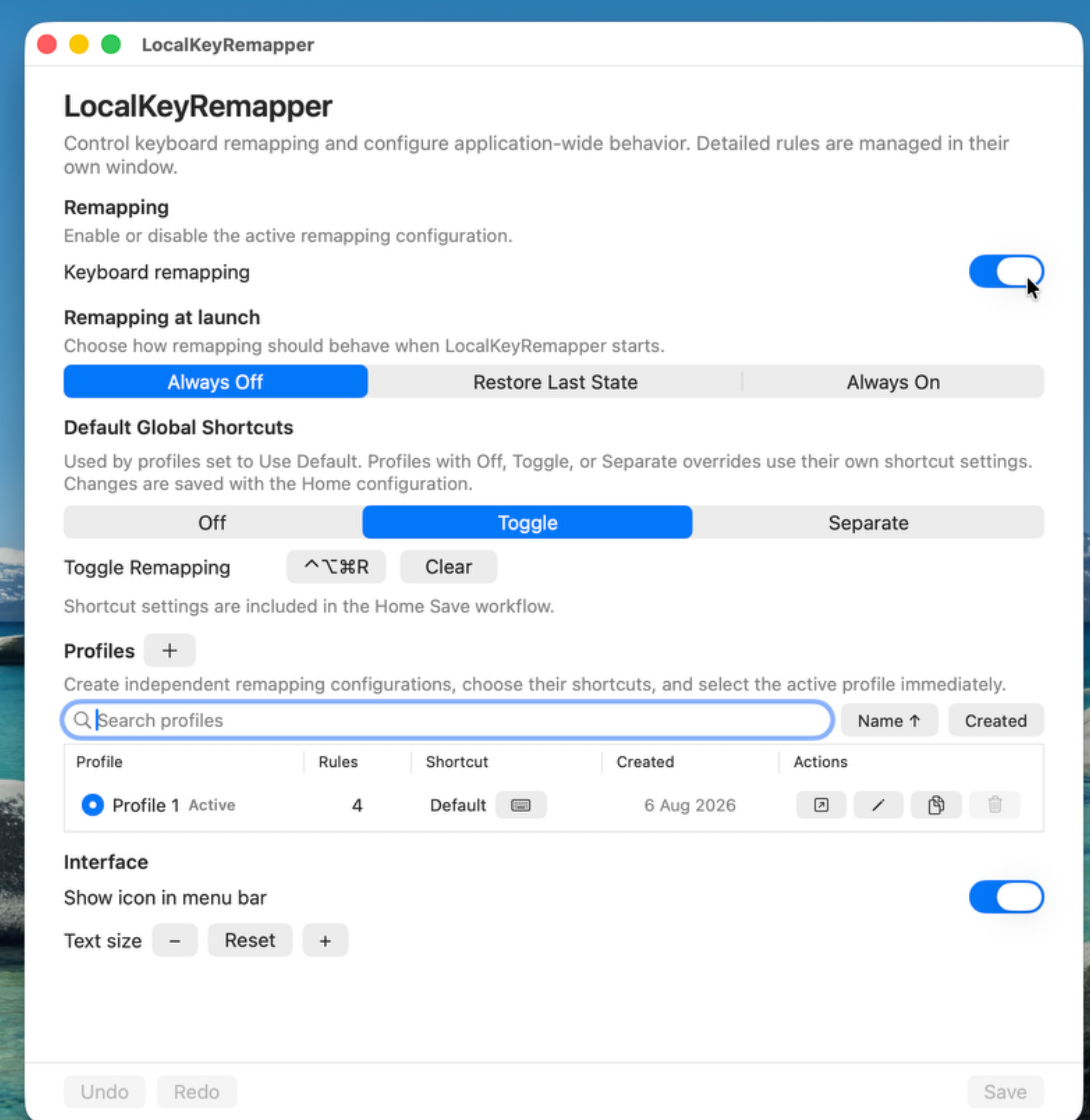
Return to the LocalKeyRemapper window and turn on Keyboard remapping. Your saved active profile can now remap keys locally on your Mac.
Done
You can now create profiles, configure rules and enable or disable remapping whenever you need it.